

Not a translator is easy to use but you may find additional support/info here :
General usage and behavior
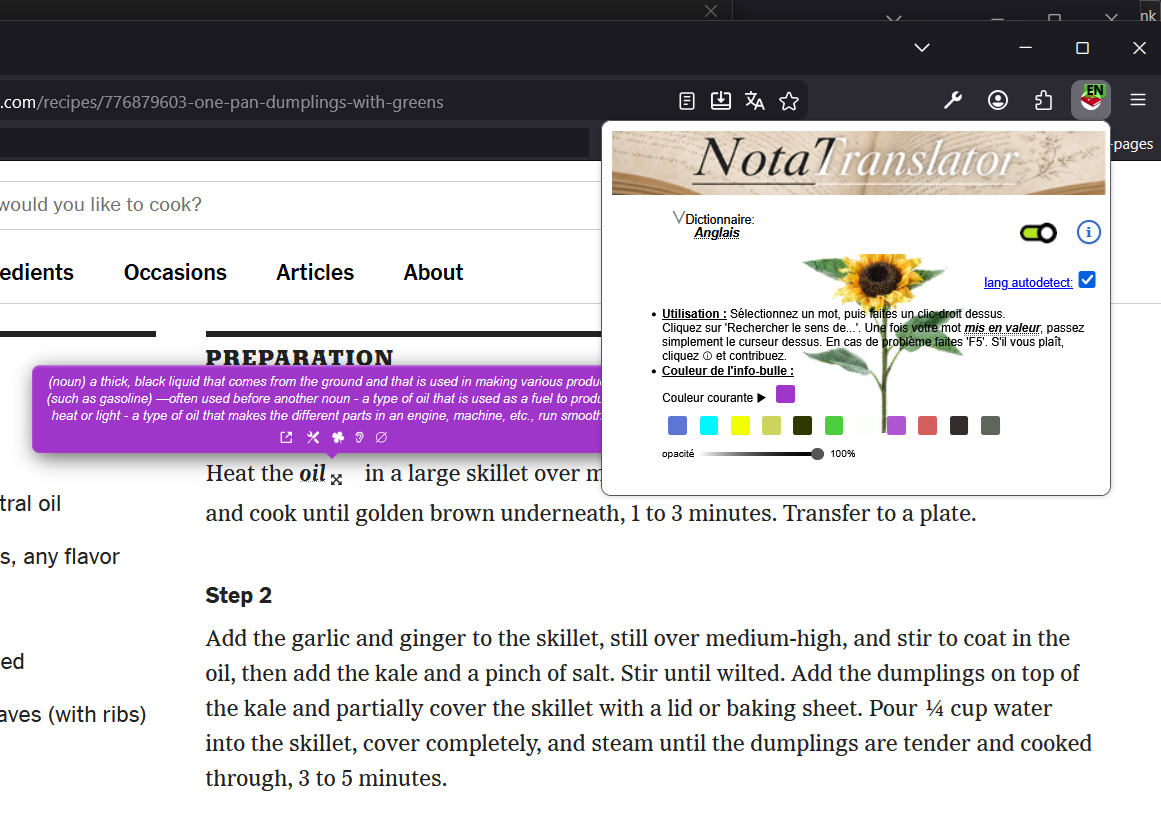
Just right-click a word you want the meaning for during your reading. Select "get meaning for 'my word'" in the contextual menu. A tooltip displays the definition of the word from a well-known dictionary.Selection
To select a word you double-click it (then right-click to open the contextual menu) or you can select by maintaining left button down while you move the cursor to the other end of your selection. Whatever fragment of text you have selected for definition, 'Not a translator' will always consider the first string that looks like a one and only word. It means that if you select 'look for' the definition of 'look' is going to be looked for. If you select 'ond the curtain' : 'ond' will be looked for : Don't expect a good result, instead select 'beyond' or 'curtain' ! Next updates may see improvments as a two words seeker may be useful. You can select and reselect the same word or overlap selections but do that only if you're a maniac who wants to play with the rotating tooltips because this is not very useful. However, sometimes it may help... You won't get anything if you select inside an Iframe : This is a security issue in some browsers and it's refused right now. Pressing F5 will refresh the page to its orginal state.Options
If you right-click the dictionary icon near the navigation field in your web-browser, you can change the dictionary/language the selected word will be defined into. English and Spanish are supported so far.
If you left-click the dictionary icon you'll get access to the main gui option : tooltip color change !
If you need full speed performance for your navigation you can put the extension in sleep mode : basically the extension listeners are disabled and no html/css will be inserted in the pages.
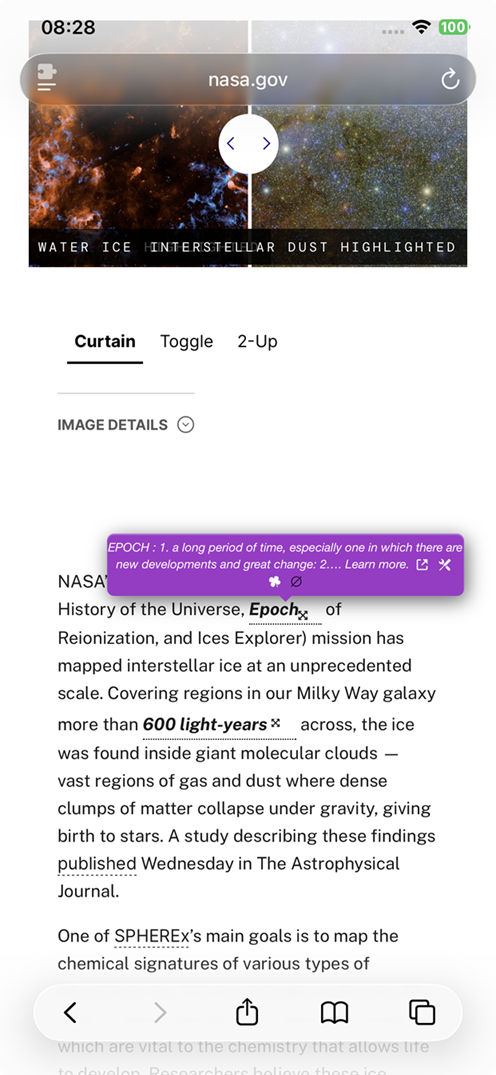
Because the layout of a page is not predictable, tooltips have been made rotative in case sections of the page unfortunately overlap the definition that is to be displayed. Just click the arrowed cross that appears near your selection once it has been treated (This as a first approach. Continue reading for advanced usage).

lang autodetect has been introduced since version 1.8 and adjusts automatically the dictionary to the language of the page you're visiting at load time. i18n.detectLanguage() API is used and is quite efficient.
However, when several different languages are entangled in the same page (like community portals for example) the result may not be has expected. It's still possible to change the dictionary quickly through the popup menu. It's also possible to deactivate lang autodetect. A refresh (F5) will often be sufficient.
lang autodetect loads during page loading in a tab. If the language displayed in the Badge text seems unsynchronised just refresh the page (F5).
repair/fix tooltip may need some more technical explanations as a functionality : Usually tooltips are injected inline in the html flow. In most of the cases it's sufficient to get a proper render even if some color changes may be required to balance styles inheritances and fusions.
But most cases are not all the cases and sometimes it's really a mess when styles from the host page cypher tooltips own styles, when blocks of any kind overlap the definition, etc... Autodetecting overlaps is possible but overlapping is not always the problem as the tips are made rotative. Moreover, even with overlapping, preserving inline injection and some style inheritance is sometimes a better way to display a comfortable/readable result as offsets of selection are not always easy to guess.
The best way to handle this issue, to me, was to let the choice to correct the tooltip position and display: this correction is a sort of trick according to the usual flow of html. We try to intercept the coordinates of the selection and replace it by an overlapping block that mimics inline injection, the tooltip is made overlapping everything.
This seems acceptable although not perfect. Deleting the tooltip with “∅” is still possible. Refreshing (F5) will return you to the original page in the worst of any cases. Here below are samples of such fixes.
And if you still feel some enhancement are required, contact us at the end of this page.
N.B: Please don't ask for iframe support as this is a security related issue different from this, for the moment : browsers don't allow easily to jump from host to host to modify inline content.
(As you may notice it may or may not erase selected word you ask definition for inside the tooltip)
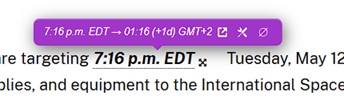
Quick Translate and Return is a new, totally against the spirit, freestyle functionality : It uses LibreTranslate API to provide a quick translation into browser current local.
This has been done because it may occur that you are stuck inside the definition and still don't understand. Don't over-use : Intuition is highly encouraged as intuition errors will still be more useful than a correct translation one would forget as soon as readed ! But hey ! as you want...This is a very quick one-word translation provided raw. Another click on the 4 leaves clover and you're back to the defintion.
Let me know for bugs...
Ahh...Almost forgot : you have no excuse overusing 'quick-translate' because you can do that :
| Before fixing: | After fixing: |
|---|---|
![]() |
![]() |
![]() |
![]() |
![]() |
![]() |


Cambridge English dictionary
Diccionario de lengua Espanola
Dictionnaire de langue Française Larousse
Portale Treccani
Libre Translate
Wiktionnaire